Monday, May 23, 2022

Upload files in blob Container -azure storage in .Net Core

Lets follow steps to Upload files in Blob container

I will use same project which I created earlier , kindly see https://mannojkumar.blogspot.com/2022/05/upload-files-in-azure-file-storage-in.html for more details ..

1. Login to azure portal :  https://portal.azure.com/

2. Go to Storage Account and Click on Container from left panel ->Add Container -> enter container name (lowercase) -> create

 if you dont want to create container from here leave the 2nd steps , it will be created automatically from code .


3. Open visual studio to setup project see the previous blog https://mannojkumar.blogspot.com/2022/05/upload-files-in-azure-file-storage-in.html.

4. Update appsettings.json file and add your created container name / want to create in azure blob 
{
  "AppSettings": {
    "DownloadPath": "url",
    "AzureFileConnection": "",
    "AzureAccessKey1": "",
    "AzureAccessKey2": "",
    "AzureFileShare": "azuretest",
    "AzureDirectory": "myfiles",
    "BlobContainer": "mycontainer"
  },
  "Logging": {
    "LogLevel": {
      "Default": "Information"
    }
  }
}
.

Add BlogContainer property in AppSettings.cs class 
 public string BlobContainer { get; set; }


5. Add below code in FileUploadService

    public int FileUploadInBlobContainer(FileDto command)
        {
            string fileName;
            byte[] fileInBytes;
            var file = command.File;
            fileName = Guid.NewGuid() + Path.GetExtension(file.FileName);
            fileInBytes = GetBytes(file);
            if (fileInBytes == null || fileInBytes.Length == 0)
            {
                return 0;
            }
            try
            {
                BlobServiceClient blobServiceClient = new BlobServiceClient(_appSetting.AzureFileConnection);

                var blobContainerClient = blobServiceClient.GetBlobContainerClient(_appSetting.BlobContainer);
                blobContainerClient.CreateIfNotExists();
                using (MemoryStream stream = new MemoryStream(fileInBytes))
                {
                    blobContainerClient.UploadBlob(fileName, stream);
                }

             
            }
            catch (Exception ex)
            {
                // Log.Error("can't use storage account! " + ex.Message);
                throw ex; // you can handle the way how u want
                // return null;
            }
            return 1;
        }

6. add below to IFileUploadService

int FileUploadInBlobContainer(FileDto command);

7. Add below endpoint in FileUploadController

 [HttpPost, DisableRequestSizeLimit]

        [Route("upload-files-blob")]
        [Consumes("multipart/form-data")]
        public IActionResult UploadFilesBlobs(FileDto command)
        {
            var result = _fileService.FileUploadInBlobContainer(command);
            return Ok(result);

      }

8. Run your project and browser swagger and click execute


9. Go to azure storage-> container ->mycontainer you can see your uploaded file 

We are done with uploading file in blob container . in next post we will see how to download files  from blob. 


Thanks

Upload & Download Files in Azure File Storage in .NET CORE WEB API

 Upload Files in Azure File Storage in .NET CORE WEB API

This post is  more about azure  features so will not focus more in coding practices. 

Set up .Net Core 5 Project :

  1. Create a new Project in visual studio 


  1. Select ASP.Net Core Web API and click Next


  1. Enter your project Name "AzureFileStorageTutorial" and click next


  1. Select desired version and create project , here


  1. Create project will be shown like below


Let's go and Setup our file storage in Azure portal first, then again we will come back here

 Setup File Storage in Azure

  1. Open https://portal.azure.com/ and sign in
  2. Click on storage account -> and click on Create button


  1. Select subscription - resource group , enter storage account name e.g. "FileStorageTest" account and leave other field default and click review +create

  1. After step no. 4 storage account will be created , that you can see in the storage account list as below
  2. Click on created storage account name ->Storage Browser(Preview) then  click on add file share  , in right panel enter azuretest in lowercase i.e fileshare name and create


  1. Above step will create fileshare which you can find under fileshare list. Here I am going to save files under one directory so will create new directory by click on add directory and named MyFiles


After creating directory lest move to our created project in visual studio .Here we need to add some nuget packages as below , in this tutorial I am focusing only upload via fileshare ,so will add only required packages for file shares .


After adding above package open appsetting.json, to put all azure related configuration


  1. Create AppSettings.cs to read the above config


2.. Open startup.cs and put below code , rest setting you can leave as it is.


  1. Create class FileDto.cs and property as below


  2. Let's create  services and controller to upload files as below
  1. Create Class Named -FileUploadService and put below code


using Microsoft.AspNetCore.Http;

using Microsoft.WindowsAzure.Storage;

using Microsoft.WindowsAzure.Storage.File;

using System;

using System.IO;

using System.Linq;

using System.Threading.Tasks;


namespace AzureFileStorageTutorial

{

    public class FileUploadService:IFileUploadService

    {  

        public async Task<int> AzureUpload (FileDto command)

        {

            string fileName;

            byte[] fileInBytes;

            var file = command.File;          

            fileName = Guid.NewGuid() + Path.GetExtension(file.FileName);

            fileInBytes = GetBytes(file);

            if (fileInBytes == null || fileInBytes.Length == 0)

            {

                return 0;

            }

            CloudStorageAccount storageAccount;

            try

            {

                storageAccount = CloudStorageAccount.Parse(AppSettings._settings.AzureFileConnection);

            }

            catch (Exception ex)

            {

                // Log.Error("can't use storage account! " + ex.Message);

                throw ex; // you can handle the way how u want

                // return null;

            }

            CloudFileClient fileClient = storageAccount.CreateCloudFileClient();

            CloudFileShare share = fileClient.GetShareReference(AppSettings._settings.AzureFileShare);

            if ( share.ExistsAsync().Result)

            {

                try

                {

                    CloudFileDirectory rootDir = share.GetRootDirectoryReference();

                    CloudFileDirectory directoryRef;

                    directoryRef = rootDir.GetDirectoryReference(AppSettings._settings.AzureDirectory);

                   await directoryRef.CreateIfNotExistsAsync();

                    CloudFile = directoryRef.GetFileReference(fileName);

                   await cloudFile.UploadFromByteArrayAsync(fileInBytes, 0, fileInBytes.Count());

                    var downloadPath = cloudFile.Uri;

                    //here we can prepareobject to insert in db

                    return 1;

                }

                catch (Exception ex)

                {

                    throw ex;                }

            }

            else

            {              

                throw new BadHttpRequestException("Can't file storage account");

            }

        }

        public byte[] GetBytes(IFormFile formFile)

        {

            using (var memoryStream = new MemoryStream())

            {

                formFile.CopyToAsync(memoryStream);

                return memoryStream.ToArray();

            }

        }

    }

}

  1. Create interface IFileUploadService


using System.Threading.Tasks;

namespace AzureFileStorageTutorial

{

    public interface IFileUploadService

    {

        Task<int> AzureUpload(FileDto command);

    }

}


  1. Add Controller : FileUploadController and put below code


using Microsoft.AspNetCore.Mvc;

namespace AzureFileStorageTutorial.Controllers

{

    public class FileUploadController : Controller

    {

        private readonly IFileUploadService _fileService;

        public FileUploadController(IFileUploadService fileService)

        {

            _fileService = fileService;

        }

        public ActionResult Index()

        {

            return View();

        }

        [HttpPost, DisableRequestSizeLimit]      

        [Route("upload-files")]

        [Consumes("multipart/form-data")]

        public IActionResult UploadFiles(FileDto command)

        {

            var result = _fileService.AzureUpload(command);

            return Ok(result);

        }

    }

}


 Don’t foreget to register IFileUploadService in startup .cs

Now run the application and open swagger/ index.html


After successfully executed Go to azure portal and open file share ->azuretest->my files

You can see your uploaded file :


DOWNLOAD FILE :

Create below functions in FileUploadService

  public async Task<Stream> DownloadFileStream(string fileName)
        {
            MemoryStream ms = new MemoryStream();
            CloudStorageAccount storageAccount = CloudStorageAccount.Parse(_appSetting.AzureFileConnection);
            CloudFileClient cloudFileClient = storageAccount.CreateCloudFileClient();
            CloudFileShare cloudFileShare = cloudFileClient.GetShareReference(_appSetting.AzureFileShare);
            if (cloudFileShare.ExistsAsync().Result)
            {
                CloudFileDirectory rootDir = cloudFileShare.GetRootDirectoryReference();
                CloudFileDirectory workarea = rootDir.GetDirectoryReference(_appSetting.AzureDirectory);
                if (workarea.ExistsAsync().Result)
                {
                    CloudFile cloudFile = workarea.GetFileReference(fileName);

                    if (cloudFile.ExistsAsync().Result)
                    {
                        await cloudFile.DownloadToStreamAsync(ms);
                        return cloudFile.OpenReadAsync().Result;
                        // return File(blobStream, cloudFile.Properties.ContentType, file.Name);
                    }
                }
            }
            return null;
        }

Add in IFileUploadService 
 Task<Stream> DownloadFileStream(string fileName);

Add in FileUploadController :
 [HttpGet]
     
        [Route("downloads-file/{fileName}")]
        public IActionResult Download(string fileName)
        {
           
             var stream = _fileService.DownloadFileStream(fileName);
            return File(stream.Result, GetContentType(fileName), fileName);

        }
  private string GetContentType(string path)
        {
            var provider = new FileExtensionContentTypeProvider();
            string contentType;
            if (!provider.TryGetContentType(path, out contentType))
            {
                contentType = "application/octet-stream";
            }
            return contentType;
        }

Open swagger to test download and enter fileName what uploaded in azure file share 


Thursday, September 17, 2020

Reactive forms in angular

 In angular we can create two types of forms 1. Reactive form 2.template based form

  1. In Reactive form : all the codes handle in type script , no need to use ngModel to get and set value in control. we define form and formcontrolname for each control , and through formControl we get and set value .reactive form code is neat and clean when we have more complex structure or validation we should use reactive form .will see more detail .
  2. Template driven : data binding is done via ngModel ,generally we can use this approach for simple form ,in this approach code became messy and very difficult to manage . Also in this approch difficult to handle all validation ,need more coding.

So , I like to go with Reactive form approach instead of Template based. In our tutorial all forms will be reactive , but we can use both approach if required. I am going to create empoloyee form which will have below fields :

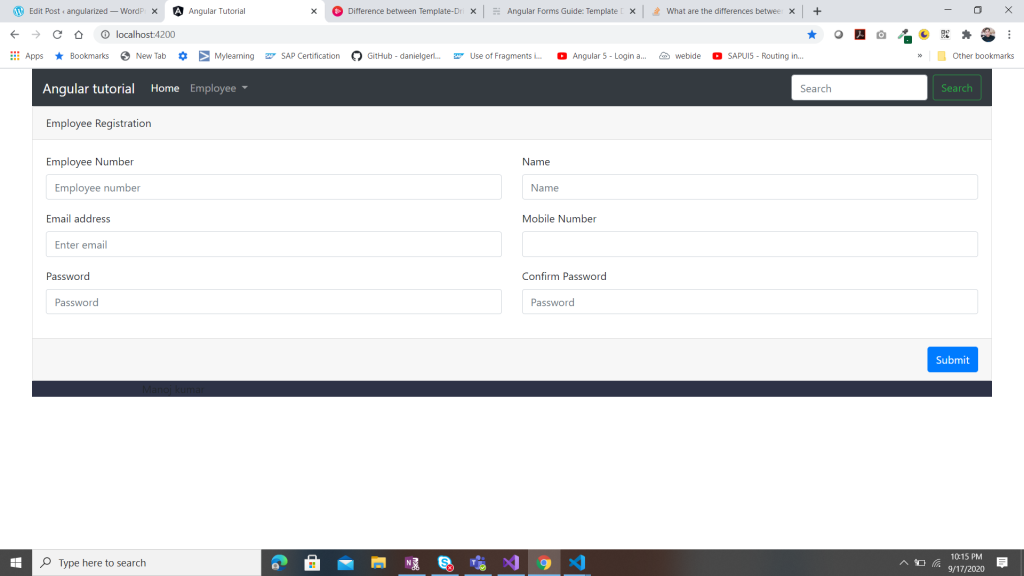
  1. Employee Id ,Employee Name, email Id,Mobile Number,Password etc.. our final output will be as below :
Employee Registration formI

I have already generated "Employee" component . In previous lesson we know that any component have 4 files , .html, .ts,.css and .spec.ts. here we will focus only on 3 files. spec.ts will see in later tutorial. so to create form like above

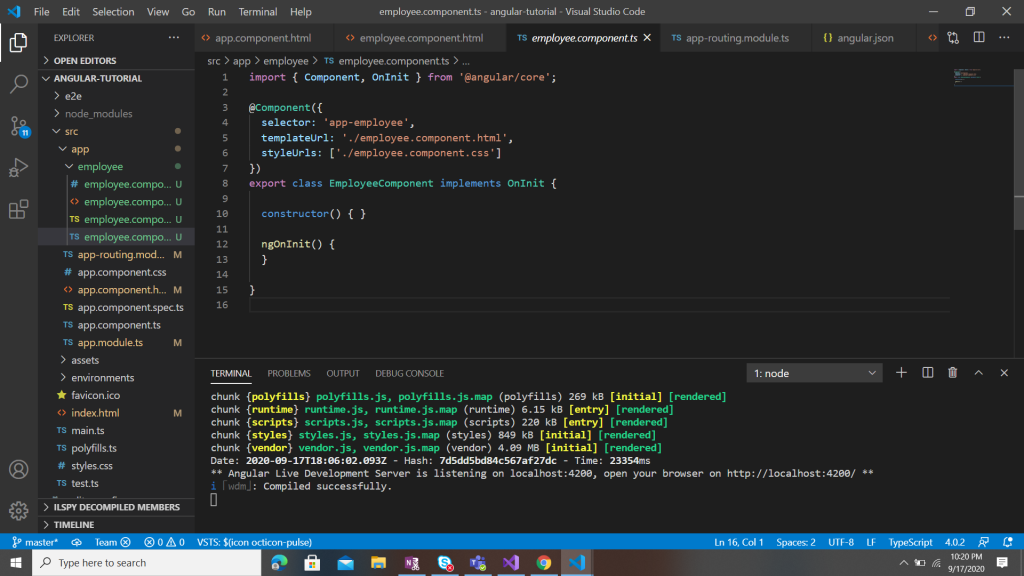
    1. Open employee.component.ts file , default structure of this file will look like :

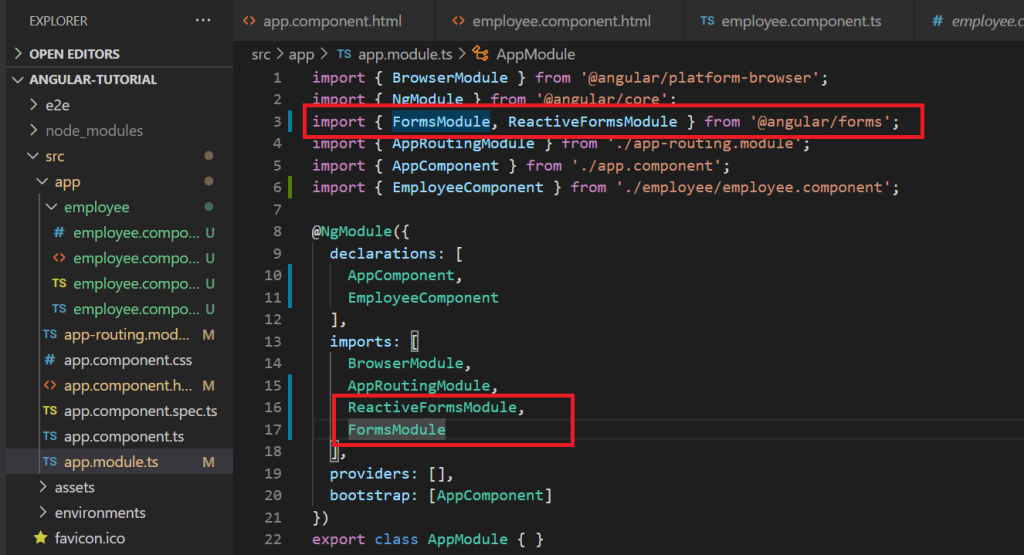
    In order to enable reactive form open app.module.ts and import below import { FormsModule, ReactiveFormsModule } from '@angular/forms'; in import section add ReactiveFormsModule ,FormsModule.

In order to enable reactive form open app.module.ts and import below import { FormsModule, ReactiveFormsModule } from '@angular/forms'; in import section add ReactiveFormsModule ,FormsModule.

Now come back to employee.component.ts and add following code :

import { FormGroup, FormBuilder, Validators } from '@angular/forms';

inject dependency of formBuilder inside constructor like :  constructor( private formBuilder: FormBuilder) { }

define formgroup name employeeForm like below:

employeeForm :FormGroup;

inside ngOnInit fn create form controls -

ngOnInit() {    this.employeeForm = this.formBuilder.group({

      employeeId: ['', Validators.required],

      name: ['', Validators.required],

      email: ['', Validators.required],

      mobile: ['', Validators.required],

      password:['', Validators.required],

      confirmPassword:['', Validators.required]

    });

  }

so , inside ngOnInit we define our form fields ,which are basically formContolName which will be bind with control in html. and by refering this we can get or set value from controls. So now .ts file will looks like :


lets open .html : 1. defined formGroup for inside form tag <form [formGroup]="employeeForm", 

employeeForm is the same formgroup which we have defined inside .ts file . now all formConrolName can be access and bind with control inside employeeForm : to bind control use "formControlName" directives with control. like : <input type="text" class="form-control"  formControlName="employeeId" placeholder="Employee number"> .full code of our html file will be as below:

<form [formGroup]="employeeForm">

  <div class="card">

    <div class="card-header">

      Employee Registration

    </div>

    <div class="card-body">

      <div class="row ">

        <div class="col-md-6">

          <div class="form-group">

            <label>Employee Number</label>

            <input type="text" class="form-control" formControlName="employeeId" placeholder="Employee number">

          </div>

          <div class="form-group">

            <label>Email address</label>

            <input type="email" class="form-control" formControlName="email" aria-describedby="emailHelp"

              placeholder="Enter email">

          </div>

        </div>

        <div class="col-md-6">

          <div class="form-group">

            <label>Name</label>

            <input type="text" class="form-control" formControlName="name" placeholder="Name">

          </div>

          <div class="form-group">

            <label>Mobile Number</label>

            <input type="number" class="form-control" formControlName="mobile">

          </div>

        </div>

      </div>

      <div class="row ">

        <div class="col-md-6">

          <div class="form-group">

            <label>Password</label>

            <input type="text" class="form-control" formControlName="password" placeholder="Password">

          </div>

        </div>

        <div class="col-md-6">

          <div class="form-group">

            <label>Confirm Password</label>

            <input type="text" class="form-control" formControlName="confirmPassword" placeholder="Password">

          </div>

        </div>

      </div>

    </div>

    <div class="card-footer">

      <button type="submit" class="btn btn-primary float-right"> Submit</button>

    </div>

  </div>

</form>


So ,after running the above code our output will be :


Thats it. in next tutorial will see how to implement validations.....


Convert Html to Pdf in azure function and save in blob container

 In this post  I am going to create an azure function ( httpTrigger ) and send html content  which will be converted into PDF and save in bl...