Wednesday, July 27, 2022

Azure Active Directory B2C Registration and login in .Net Core Web app

 What : Azure AD B2C is the identity management service to manage external/internal user’s profile ,signup/sign in and get token to use for your application securely without doing a lot of custom development. If you are developing an app for IOS, Android ,SPA and it is customer facing where customer can register himself and use their personal email/company email/social account to sign up and sign in , the Azure AD B2C is the quick and best choice for you.

So Overall process will be-


So, without delaying let’s create Azure AD B2C authenticated app in .Net Core web app.

Just to make simplified I will cover this tutorial in 3 Parts :

Part 1: Configure Azure AD B2C and implement in .Net core web app for signup /sign in

Part 2: Customize Default Signup/Sign In pages .

Part 3:Add Attributes to User Profile other than Default &  Update user profile

Let’s start Part 1 :

Configure Azure AD B2C and implement in .Net core web app for signup /sign in

Steps :

1.      Register Azure Active Directory – When you create subscription many services not registered by default. Azure AD is one of them . To register Azure Active Directory,

Go to the subscriptions-> Resource Provider(left menu) -> Search Azure Active Directory -> select and click on Register .


2.      Create B2C tenant  : For B2C AD need to create seperate tenant .

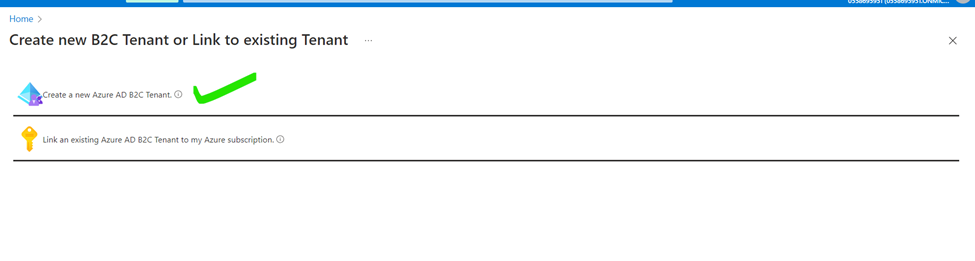
To create B2C Tenants go to home page and search Azure Active Directory B2C  in top search box and click Ok . It will redirect you to a tenant creation screen.


Enter the details click review & create details


Tenant creation takes almost 1 to 2 min . By the time waiting will be good choice instead of refreshing browser. You will see below message after successfully creation of Tenant . Click on link to go to B2C tenant dashboard page.


Tenant Dashboard page


3.      Register App : Next step to register an app and get client Id and configure user flow (signin/signout/singup/password reset ) .I will cover only signup ,sign in and password reset userflow.

Click on App Registration from Left menu and click New Registration. Enter the app name “webb2cexample” rest you can leave default and click Register.

4.      Authentication : Click on the Authentication ->Add a Platform ->choose Web


5.      You need to Configure web as below  

Redirect URIs : since you have not created any application then lets put some dummy url/keep blanck , later we can update this.

Check below both highlighted check box. Access token Id Token and click configure.


 6.      Configure User flow (in previous version it was policies)

Go to B2C tenant and click on User Flow from left menu


You will see below dashboard for user flow . Select Sign up and Sign In and recommended as below .Click on create button.


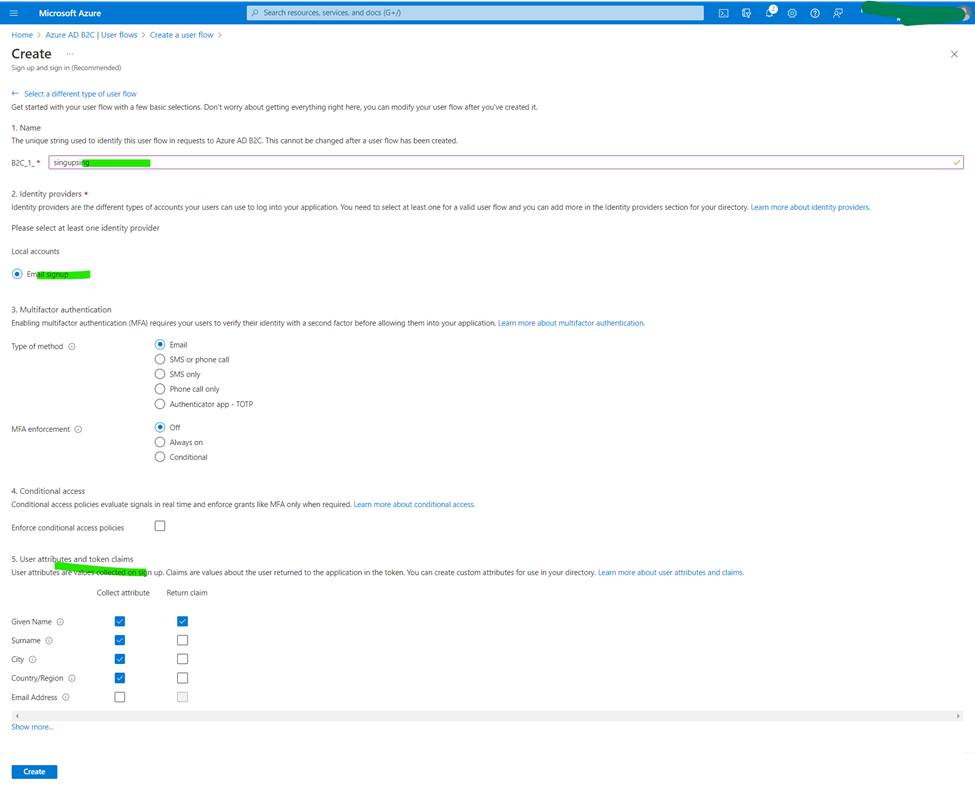
In next screen you need to setup some configuration for sign up and sign in form which will be rendered by Microsoft identity to you application .

1.      Name : It is policies name which need to defined to render form for selected properties.  

enter   singupsing

2.      Identity Provider : Unique field for user which he cannot change after registration : check the radio button

3.      Multifactor authentication : leave as it is.

4.      Conditional Access : leave as it is.

5.      User Attribute and Claim : You  need to select what you need to capture on sign up screen and what you want to return as a claim with token. Choose what you need and create.     User Attribute can be added more ,which I will take through in part 4.
 

After creation of user flow, you can see in the list. Copy this user flow name somewhere in your local .


 Similarly, you can create new User Flow for Password reset. Which I am not going to create here. For each activity like Password Change ,sign up & sign in ,edit profile you need to create flow.

Alright, I think we have done with configuration from azure side. Let’s move to visual studio and see how to implement this.

Implement Azure AD B2C Authentication in .Net Core MVC App

1.      Create Web App : Open Visual studio and create .Net Core web App(MVC) enter project name :” AzureB2CExamples”  .On next screen select Authentication type : “Microsoft Identity Type” then click create.


If you explore solution explorer you can see  automatically required NuGet Packages and setup configuration will be added when we select Identity type.

NuGet Packages: 


2.      Open appsettings.json file and replace AzureAd config as below

        {
       
          "AzureAdB2C": {
        "Instance": "<<your tenant url>>",
            "TenantId": "Tenant Id",
            "ClientId": "Client Id",
            "Domain": "Doman Name",
            "SignUpSignInPolicyId": "B2C_1_singupsing",
            "CallbackPath": "/signin-oidc" // "defaults to /signin-oidc you can replace what you want
          },
      "Logging": {
        "LogLevel": {
              "Default": "Information",
          "Microsoft": "Warning",
          "Microsoft.Hosting.Lifetime": "Information"
            }
          },
          "AllowedHosts": "*"
    }

Details can be copied from

For instance, copy url from below screen


3. open Startup.cs and replace with the below code

 using Microsoft.AspNetCore.Authentication.OpenIdConnect;

using Microsoft.AspNetCore.Builder;
using Microsoft.AspNetCore.Hosting;
using Microsoft.Extensions.Configuration;
using Microsoft.Extensions.DependencyInjection;
using Microsoft.Extensions.Hosting;
using Microsoft.Identity.Web;
using Microsoft.Identity.Web.UI;

namespace AzureB2CExamples
{
    public class Startup
    {
        public Startup(IConfiguration configuration)
        {
            Configuration = configuration;
        }

        public IConfiguration Configuration { get; }

        // This method gets called by the runtime. Use this method to add services to the container.
        public void ConfigureServices(IServiceCollection services)
        {
         
            services.AddAuthentication(OpenIdConnectDefaults.AuthenticationScheme)
                .AddMicrosoftIdentityWebApp(Configuration.GetSection("AzureAdB2C"));

            services.AddControllersWithViews();
            services.AddRazorPages()
                 .AddMicrosoftIdentityUI();
             
        }

        // This method gets called by the runtime. Use this method to configure the HTTP request pipeline.
        public void Configure(IApplicationBuilder app, IWebHostEnvironment env)
        {
            if (env.IsDevelopment())
            {
                app.UseDeveloperExceptionPage();
            }
            else
            {
                app.UseExceptionHandler("/Home/Error");
                // The default HSTS value is 30 days. You may want to change this for production scenarios, see https://aka.ms/aspnetcore-hsts.
                app.UseHsts();
            }
            app.UseHttpsRedirection();
            app.UseStaticFiles();

            app.UseRouting();

            app.UseAuthentication();
            app.UseAuthorization();

            app.UseEndpoints(endpoints =>
            {
                endpoints.MapControllerRoute(
                    name: "default",
                    pattern: "{controller=Home}/{action=Index}/{id?}");
                endpoints.MapRazorPages();
            });
        }
    }
}

4. copy the below url which you need to enter in Redirect uris with callbackpath  defined in appsettings.json.


Go To Registered app and update url as below and save.


Now If you run the application you will see default created home page.


Click on Sign In it will redirects to Microsoft default Sign In Page. Which Looks like below.


Similarly, you can click on Sign up link which Redirect you to sign up page , and you can see all the user attribute whatever you chosen while creating user flow.


Note : All the redirection for sign In/Sign out handled By Microsoft.Identity.Web.UI nuget package. Which has Account controller in which all required action is defined. 

Just need to define action and controller wherever is required . you can see in _LoginPartial.cshtml.

Let’s register one user and get the user details.

Add one menu on Application home page to show user details after sign in.

·       Open _layout.cshtml and add below menu


·       Go to HomeController and add below Actions with view named “MyProfiles”

       [Authorize] // when you try to call this action, system will check your           authentication and redirect to sign in page. 

        public IActionResult MyProfiles()

        {

            return View();

        }


Now Home page looks like


Click on SignIn ->SignUp and register a user .Make sure you are entering valid email id because you will get verification code

Enter your email Id and click on send verification code , after receiving code enter and click on verify code. After that fill up all the below fields and click on Create button.


After successful registration you will be redirected to localhost Home Page with authenticated user.


 Now Let’s see added user in azure b2c tenant

Login in azure portal and go to your B2C tenant dashboard and click users from left menu


In user list you can see your registered user


User can be managed directly from azure portal also .

Alright let’s get the logged in user details -Go to web app and open myprofiles view and update the below code

@using System.Security.Claims

@{

    ViewData["Title"] = "MyProfiles";

}


<h1>MyProfiles</h1>


<table class="table-hover table-striped">

    <tr>

        <th> Type</th>

        <th> Value</th>

    </tr>


    @foreach (Claim claim in User.Claims)

    {

        <tr>

            <td>@claim.Type</td>

            <td>@claim.Value</td>

        </tr>

}

</table>

Now run your web app and click on My Profile ,you can see below output.


That’s It . you are done with this part. In next part will see how to change signin/signup page to make seamless user experience.

you can download all the azure samples code : https://github.com/mkumar8184/azure-sdk-services-samples

Sunday, July 24, 2022

.Net Core Web API Authentication and Authorization using Azure AD

In this tutorial  we are going to see how .Net Core web api can be secured and use by client application using Azure Ad Token.

Scenario - Assume we have one .Net core Client Web App which need to get token from Azure Ad and pass to .Net Core web api . 


To achieve above follow below in steps:

1. Create Web App

2. Authenticate web app and Get Token from Azure AD

3. Pass to Web Api , Web Api should also validate that token from AD and return the result.

Alright ,Lets do it in steps wise

Steps 

Azure AD Configuration for Apps

1. Login to Azure Portal and Register WebApi Project 

Go to Home -> Azure Active Directory -> App Registration from Left Menu and enter detail as below


Enter App Name "WebApiApp" and click on register rest you can leave as it is.


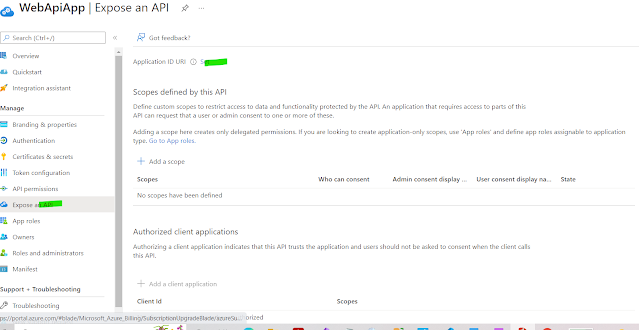
2. From Left menu in registered app click expose Api and click set . this will create a application Id url resource link


click on save ,Now you will have Application(client) ID ,copy somewhere in local will use it later

Now Lets create app roles so that in API we can allow to read/write permission. Note : here we are giving access on applications level,  not to any user or group.

3. Click App Roles from Left menu -> Create App Role -> enter details as per requirement .Here I am going create role to read data only . 


Display Name : Api.ReadOnly( you can add anything )

Member Type : Application 

Value - Api.ReadOnly (keep Same as Display name - but not necessary)

Description - enter  description ,you can enter same text or different.

Check enable the role and click Apply. New App Roles will be created and enabled.

Similarly you can create different roles as per your use.

Here we are done all the configuration which is required to access api .

Lets Register new client app which will call this api. Follow same process what you did for ApiApp.

1. Click on Register App -> New Registration .

2.Enter App name and Click Register. I entered app name "ClientAppForApi"


3. Click on API Permission from Left Menu from registered app and Click Add  permission.


4 .Click on myApis and select "WebApiApp" check the app role and click on add permission.

You can see added role in the list. Above of the list click on "Grand Admin consent " and click ok. Since this is application level member access so no need to change another things. Provide admin consent by click Grant admin.


Before moving to next steps, click on certificate and secret form left menu and create and copy the client secret value somewhere in local.


Finished the azure configuration part .Lets open the visual studio and create 2 app .

Web Api & Client Application in Visual Studio 

1. Web Api
2. .Net core client App

1. Open Visual Studio ->create new project ->Asp.Net core web api -> name "WebApiADToken" next ->Create.


2. Install NuGet Package 
Microsoft.Identity.web


3. Open appsettings.json and add below highlighted code and replace your value

{

  "Logging": {

    "LogLevel": {

      "Default": "Information",

      "Microsoft": "Warning",

      "Microsoft.Hosting.Lifetime": "Information"

    }

  },

  "AzureAd": {

    "Instance": "https://login.microsoftonline.com",

    "TenantId": "<<TenantId>>",

    "ClientId": "<<ClientId>>"

  },

  "AllowedHosts": "*"

}

4. Open Startup.cs and add below highlighted code


using Microsoft.AspNetCore.Builder; 

using Microsoft.AspNetCore.Hosting;
using Microsoft.Extensions.Configuration;
using Microsoft.Extensions.DependencyInjection;
using Microsoft.Extensions.Hosting;
using Microsoft.Identity.Web;
using Microsoft.OpenApi.Models;
 
namespace WebApiADToken
{
    public class Startup
    {
        public Startup(IConfiguration configuration)
        {
            Configuration = configuration;
        }
 
        public IConfiguration Configuration { get; }
 
        // This method gets called by the runtime. Use this method to add services to the container.
        public void ConfigureServices(IServiceCollection services)
        {
            services.AddMicrosoftIdentityWebApiAuthentication(Configuration);
            services.AddControllers();
            services.AddSwaggerGen(c =>
            {
                c.SwaggerDoc("v1", new OpenApiInfo { Title = "WebApiADToken", Version = "v1" });
            });
        }
 
        public void Configure(IApplicationBuilder app, IWebHostEnvironment env)
        {
            if (env.IsDevelopment())
            {
                app.UseDeveloperExceptionPage();
                app.UseSwagger();
                app.UseSwaggerUI(c => c.SwaggerEndpoint("/swagger/v1/swagger.json", "WebApiADToken v1"));
            }
 
            app.UseHttpsRedirection();
 
            app.UseRouting();
            app.UseAuthentication();
            app.UseAuthorization();
 
            app.UseEndpoints(endpoints =>
            {
                endpoints.MapControllers();
            });
        }
    }
}

 5. Open Default create controller "WeatherForecastController" and replace with below code . If you want to create new controller you can create and change the Get method as shown.

using Microsoft.AspNetCore.Authorization;
using Microsoft.AspNetCore.Mvc;
using Microsoft.Extensions.Logging;
using System;
using System.Collections.Generic;
using System.Linq;
 
namespace WebApiADToken.Controllers
{
    [ApiController]
    [Route("[controller]")]
  
    public class WeatherForecastController : ControllerBase
    {
        private static readonly string[] Summaries = new[]
        {
            "Freezing", "Bracing", "Chilly", "Cool", "Mild", "Warm", "Balmy", "Hot", "Sweltering", "Scorching"
        };
 
        private readonly ILogger<WeatherForecastController> _logger;
 
        public WeatherForecastController(ILogger<WeatherForecastController> logger)
        {
            _logger = logger;
        }
//replace this code
        [HttpGet]
        [Authorize(Roles ="Api.ReadOnly")]  //here we are checking authorization
        public IEnumerable<WeatherForecast> Get()
        {
            var rng = new Random();
            return Enumerable.Range(1, 5).Select(index => new WeatherForecast
            {
                Date = DateTime.Now.AddDays(index),
                TemperatureC = rng.Next(-20, 55),
                Summary = Summaries[rng.Next(Summaries.Length)]
            })
            .ToArray();
        }
    }
}

 6. Create new Asp.Net core web application project named "ClientAppForApi"  


7. Open appsettings.json and replace with below code

{
    "AzureAdConfig": {
      "Instance": "https://login.microsoftonline.com/{{tenanatId}}",
      "TenantId": "<<tenant Id>>",
      "ClientId": "<<Client Id>>",
      "ClientSecret": "<<secriet>>"
    },
"ApiSource": { "Resource": "api://d61c615b-54c8-45e2-996e-a7999668fd84", "ApiBaseUrl": "https://localhost:44393/" // this is web api url },
    "Logging": {
      "LogLevel": {
        "Default": "Information",
        "Microsoft": "Warning",
        "Microsoft.Hosting.Lifetime": "Information"
      }
    },
    "AllowedHosts": "*"
  }


Before moving to the next steps we need to add NuGet Package

Microsoft.IdentityModel.Clients.ActiveDirectory

8. Add Service class where we will get token and pass to web api to get data

Create Class named :"ExternalApiService" and add below code

using Microsoft.Extensions.Configuration;
using Microsoft.IdentityModel.Clients.ActiveDirectory;
using Newtonsoft.Json;
using System.Collections.Generic;
using System.Net.Http;


namespace ClientAppForApi
{
// Added interface
    public interface IExternalApiService
    {
        public List<WheatherResult> GetWheater();
    }
    public class ExternalApiService: IExternalApiService
    {
        private readonly HttpClient _httClient;      
        private readonly IConfiguration _configuration;
        private readonly AuthenticationContext _authenticationContext;
        private readonly ClientCredential _clientCredential;
        public ExternalApiService(HttpClient httpClient,
            IConfiguration configuration)
        {
            _httClient = httpClient;
            _configuration = configuration;
            _authenticationContext = new AuthenticationContext(_configuration["AzureAd:Instance"]);
            _clientCredential = new ClientCredential(_configuration["AzureAd:ClientId"], _configuration["AzureAd:ClientSecret"]);
        }
        public List<WheatherResult> GetWheater()
        {
            var token = GenerateToken();
            if (token == null || string.IsNullOrWhiteSpace(token.AccessToken))
            {
                throw new AdalServiceException("","Invalid Response");
            }
            _httClient.DefaultRequestHeaders.Add("Authorization", "Bearer " + token.AccessToken);
            var response = _httClient.GetAsync(_configuration["ApiSource:ApiBaseUrl"]+ "WeatherForecast").Result;
            var responseContent =  response.Content.ReadAsStringAsync().Result;
            var result = JsonConvert.DeserializeObject<List<WheatherResult>>(responseContent);
            return result;
        }

        private AuthenticationResult GenerateToken()
        {
            return _authenticationContext.AcquireTokenAsync(_configuration["ApiSource:Resource"], _clientCredential).Result;          
        }


    }
}

9. Add below line in Startup.cs

 services.AddHttpClient<IExternalApiService, ExternalApiService>();


using Microsoft.AspNetCore.Builder;
using Microsoft.AspNetCore.Hosting;
using Microsoft.Extensions.Configuration;
using Microsoft.Extensions.DependencyInjection;
using Microsoft.Extensions.Hosting;

namespace ClientAppForApi
{
    public class Startup
    {
        public Startup(IConfiguration configuration)
        {
            Configuration = configuration;
        }

        public IConfiguration Configuration { get; }

       
        public void ConfigureServices(IServiceCollection services)
        {
            services.AddHttpClient<IExternalApiService, ExternalApiService>();
            services.AddControllersWithViews();
        }

     
        public void Configure(IApplicationBuilder app, IWebHostEnvironment env)
        {
            if (env.IsDevelopment())
            {
                app.UseDeveloperExceptionPage();
            }
            else
            {
                app.UseExceptionHandler("/Home/Error");
                // The default HSTS value is 30 days. You may want to change this for production scenarios, see https://aka.ms/aspnetcore-hsts.
                app.UseHsts();
            }
            app.UseHttpsRedirection();
            app.UseStaticFiles();

            app.UseRouting();
         
            app.UseAuthorization();

            app.UseEndpoints(endpoints =>
            {
                endpoints.MapControllerRoute(
                    name: "default",
                    pattern: "{controller=Home}/{action=Index}/{id?}");
            });
        }
    }
}


10. Open HomeController.cs  and replace below code.

using ClientAppForApi.Models;
using Microsoft.AspNetCore.Mvc;
using Microsoft.Extensions.Logging;
using System.Diagnostics;

namespace ClientAppForApi.Controllers
{

    public class HomeController : Controller
    {
        private readonly ILogger<HomeController> _logger;
        private readonly  IExternalApiService  _externalApiService;
        public HomeController(ILogger<HomeController> logger, IExternalApiService externalApiService)
        {
            _logger = logger;
            _externalApiService = externalApiService;
        }

        public IActionResult Index()
        {
          var result=   _externalApiService.GetWheater();        
           return View(result);
        }

        public IActionResult Privacy()
        {
            return View();
        }

        [ResponseCache(Duration = 0, Location = ResponseCacheLocation.None, NoStore = true)]
        public IActionResult Error()
        {
            return View(new ErrorViewModel { RequestId = Activity.Current?.Id ?? HttpContext.TraceIdentifier });
        }
    }
}

11. Open Index.cshtml and replace with below code

@{
    ViewData["Title"] = "Home Page";
}
@model List<WheatherResult>;
<div class="text-center">
    <h1 class="display-4">Welcome To API Call through Azure AD Token (Client app to web api)</h1>
   
</div>
@foreach (var item in Model)
{
<ul>
    <li>Date : @item.Date</li>
    <li>TemperatureC :@item.TemperatureC</li>
    <li>TemperatureF :@item.TemperatureF</li>
    <li>Summary : @item.Summary</li>
</ul>

}


12. Add one result class which I forgot to add above to deserialize webapi result. 

using System;

namespace ClientAppForApi
{
    public class WheatherResult
    {
     
            public DateTime Date { get; set; }

            public int TemperatureC { get; set; }

            public int TemperatureF => 32 + (int)(TemperatureC / 0.5556);

            public string Summary { get; set; }
       
    }
}

We are done with coding part lets test it.

1. I have created both project in same solution so I am goint to run both together . Otherwise you just need to make sure run webapi project first then run client app. To run both app together click on solution property and select multiple startup project and set start for required both project.


If everything successful the on Index.cshtml you will see the result -


So just to summarized above - 

ClientAppForApi -> HomeController ->Index->call externalApiservice -> GenerateToken(token gets from azure)->pass received token to our web api project to call endpoint ->WeatherForecastController -> and deserialized response in object -> return on index page.


That's it. we are done with a little long exercise to secure web api from client app.


Convert Html to Pdf in azure function and save in blob container

 In this post  I am going to create an azure function ( httpTrigger ) and send html content  which will be converted into PDF and save in bl...